What's Inside Your Computer? Discovering Essential Components
Ever wondered what's ticking away inside your computer? Knowing the components under the hood—like the CPU, GPU, and motherboard—can unravel a world of untapped potential. Understanding these essentials not only empowers you when upgrading or purchasing a new setup but could also significantly boost your machine's overall performance and longevity.
This knowledge puts you in the driver's seat, making decisions that best suit your computing needs.
Motherboards: The Backbone of Your Computer
Navigating the world of motherboards is like discovering the nerve center of your computer. The motherboard is the fundamental component where everything comes together and communicates. Its features such as CPU sockets, RAM slots, and various expansion ports play crucial roles in determining your device's capabilities. Typically, motherboards are equipped to handle complex tasks, and exploring options from popular brands like ASUS, Gigabyte, or MSI can be enlightening.
When selecting a motherboard, compatibility is key. Ensuring that all pieces fit together can be tricky. You can't simply plug any CPU or RAM into just any motherboard; they must match socket types and RAM standards, respectively. Many often overlook this, leading to mismatches and unforeseen expenses. Whether you're going budget-friendly or splurging on a high-end model, each choice can remarkably influence performance. Personally, I've found premium models often cater to specific needs like overclocking or supporting multiple GPUs. For some, the bells and whistles might not justify the price, especially if basic tasks fulfill your needs. Visit our Motherboards Category to explore options that suit your computing goals.Central Processing Unit (CPU): The Brain of Operations
The CPU, or Central Processing Unit, is often heralded as the brain of your computer—and for good reason. It handles instructions from various computer programs, processing data that keeps everything running smoothly. With features like cores and threads, CPUs can significantly impact how well your device multitasks. For example, a quad-core processor is often suitable for day-to-day tasks, while eight-core CPUs better serve gaming and content creation.
Clock speed, measured in GHz, also plays a critical role in performance, but it's worth noting that more isn't always better; efficiency matters too. The cache size, usually specified as L2 or L3 cache, can accelerate data retrieval, enhancing your system’s overall responsiveness. When debating between Intel and AMD processors, consider specific use cases. In my experience, Intel often excels in tasks demanding high efficiency, while AMD offers fantastic multi-threaded performance, which is a boon for video editors and gamers. If you're focused on gaming or hefty computational tasks, a more robust CPU is advisable. Conversely, for general purposes, a less expensive model often suffices. To dive deeper into CPUs, check out our comprehensive guide to Processors.Graphics Processing Unit (GPU): Beyond Just Gaming
While many think of the GPU, or Graphics Processing Unit, mainly as a tool for gamers, its usefulness extends far beyond flashy visuals. Whether it's powering through complex machine learning processes or rendering breathtaking visual effects, the GPU is indispensable. Within the market, you generally encounter two main types: integrated and dedicated GPUs. An integrated GPU is simpler, residing within the CPU itself, and adequate for basic tasks.
Dedicated GPUs are separate components offering enhanced power—ideal for more demanding uses like AAA video games or 3D rendering. In my own journey, transitioning to a dedicated model significantly elevated my gaming and editing experiences. Invest in analyzing specs like VRAM and architecture before committing. More VRAM often allows for smoother multitasking, especially in high-resolution settings. Nvidia and AMD typically dominate this space, each with its own strengths. Nvidia's CUDA cores, for instance, cater well to professional workloads. But, if you're an enthusiastic gamer or a creative type working with heavy software, a dedicated GPU is a game-changer. Browse through our Graphics Cards section to find options aligning with your performance needs.Storage Solutions: HDD vs. SSD vs. Emerging Technologies
Storage is where your files live, and choosing between HDDs and SSDs can feel like picking between apples and oranges. Traditional Hard Disk Drives (HDDs) offer vast storage at a lower price, but Solid-State Drives (SSDs) bring speed and reliability to the table. An SSD will noticeably improve boot and load times—ideal for operating systems and frequently used programs.
When I shifted from an HDD to an SSD, the difference was almost like night and day. However, don't discount newer technologies like NVMe SSDs, which take speed up several notches. Despite higher prices, their efficiency is fantastic for high-performance needs. Balancing cost and necessity, a hybrid setup, using both HDD for bulk storage and SSD for crucial files, often hits the sweet spot. If you're not sure which fits your needs, think about your primary use: large data hoarders might lean towards HDDs, while speed demons need SSDs. Keep in mind, what's best isn't always what's new—often, solutions that marry both old and new serve us best. Dive into our Storage Solutions Guide to explore detailed comparisons and find what suits you.Navigating Screen Protection Options
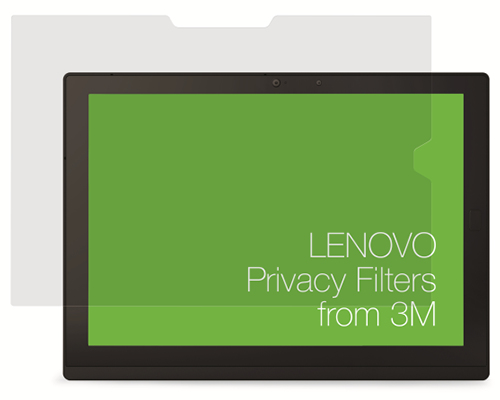
Is glare bothering you, or is privacy your top concern? When it comes to screen protection, comparing options like the Getac GMPFXQ tablet screen protector and the Lenovo 4XJ1D33270 display privacy filter can make the decision clearer. The Getac model is superb for environments with annoyingly high glare, its anti-glare coating ensuring you see clearly even in brighter conditions.
Conversely, the Lenovo privacy filter shines in public or open workspaces, letting you work peacefully without unwanted eyes prying over your shoulder. Navigating between these options depends on your primary need—if you work outdoors often or travel in busy places, both have their advantages. Check out more about Getac and Lenovo to decide which aligns better with your requirements.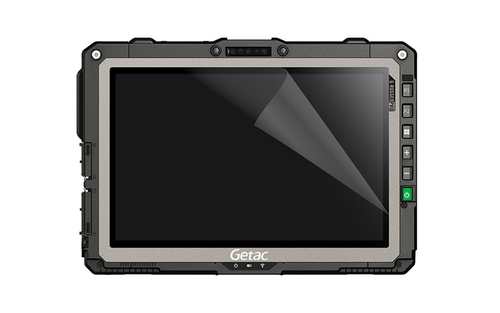
Step-by-Step: Installing a New RAM Module
Boosting your computer's performance by installing new RAM can be both fulfilling and daunting. Start by identifying your current setup’s compatibility—check your motherboard’s manual or search online to see what modules it supports.
Before diving in, remember that static electricity is a threat, so it's wise to ground yourself or use an anti-static wrist strap. Carefully insert the RAM into the slots, ensuring alignment with the notches. Push down firmly until the clips snap into place, but don’t force it! Should you hit snags—like a system not recognizing the new RAM—it's usually a simple matter of reseating the modules or checking BIOS settings. In my experience, a small misalignment can result in big headaches, so patience pays. If it still doesn’t seem right, seeking professional help isn’t admitting defeat—it’s making sure your upgrade boosts your productivity without unnecessary hiccups.Conclusion
We've walked through the essential components that breathe life and power into your computer. From the multifaceted role of the motherboard and the sophisticated performance of CPUs to the impressive capabilities of GPUs and the dynamic realm of storage solutions, each plays a metaphorical tune. Regularly examining your setup ensures it continues to meet your unique needs, whether for work, play, or innovation.
Revisiting these sections could offer more clarity for making informed choices. Ultimately, understanding hardware moves you from a passive user to a proactive decision-maker. As you ponder your next upgrade, why not explore products on the Lenovo site? Making an informed decision enhances your computing experience in unprecedented ways.Frequently Asked Questions
Common questions about Computers